Migration from cPanel and Plesk
Switch panels without starting over.
Koapanel brings websites, files, databases, cron jobs and mailboxes to the new server from cPanel, Plesk, DirectAdmin or any Linux box. From the backup file, or by connecting straight to the old server over SSH.
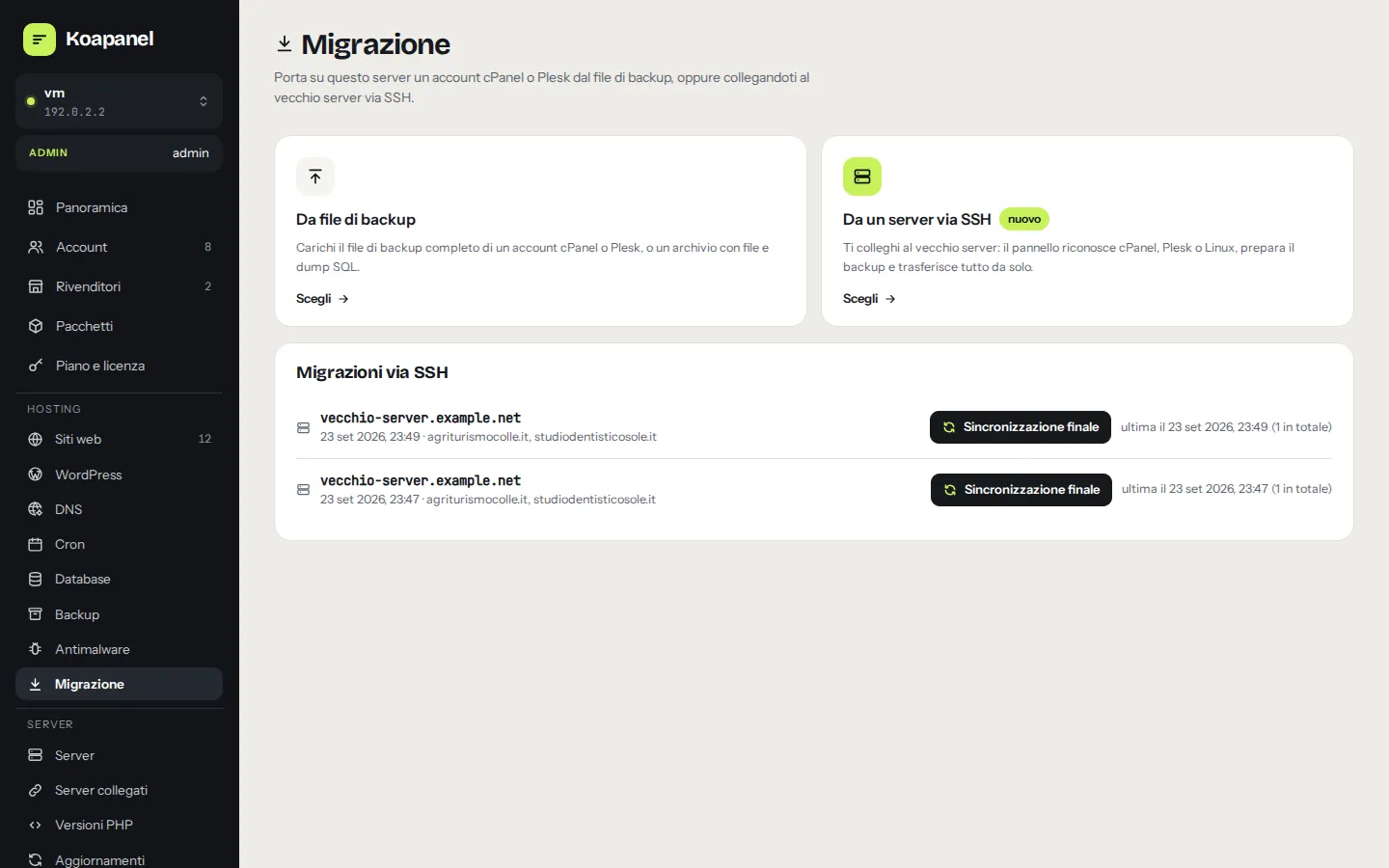
Two ways
Choose how to bring your sites.
From the backup file
No access to the old server is needed during the import.
- cPanel: Files › Backup › full account backup (or
pkgacctfrom WHM) - Plesk: Tools & Settings › Backup Manager
- Or an archive with the site files and an SQL dump
Directly over SSH
The panel detects the server, prepares the backup, transfers it and imports it: nothing to download or upload.
- cPanel as root: pick accounts, one or all
- cPanel with the account user: even without root
- Plesk as root, DirectAdmin and any Linux
The guided flow
Review everything before importing.
What we found
Main and addon domains, subdomains and aliases, databases, cron jobs, mailboxes and total size.
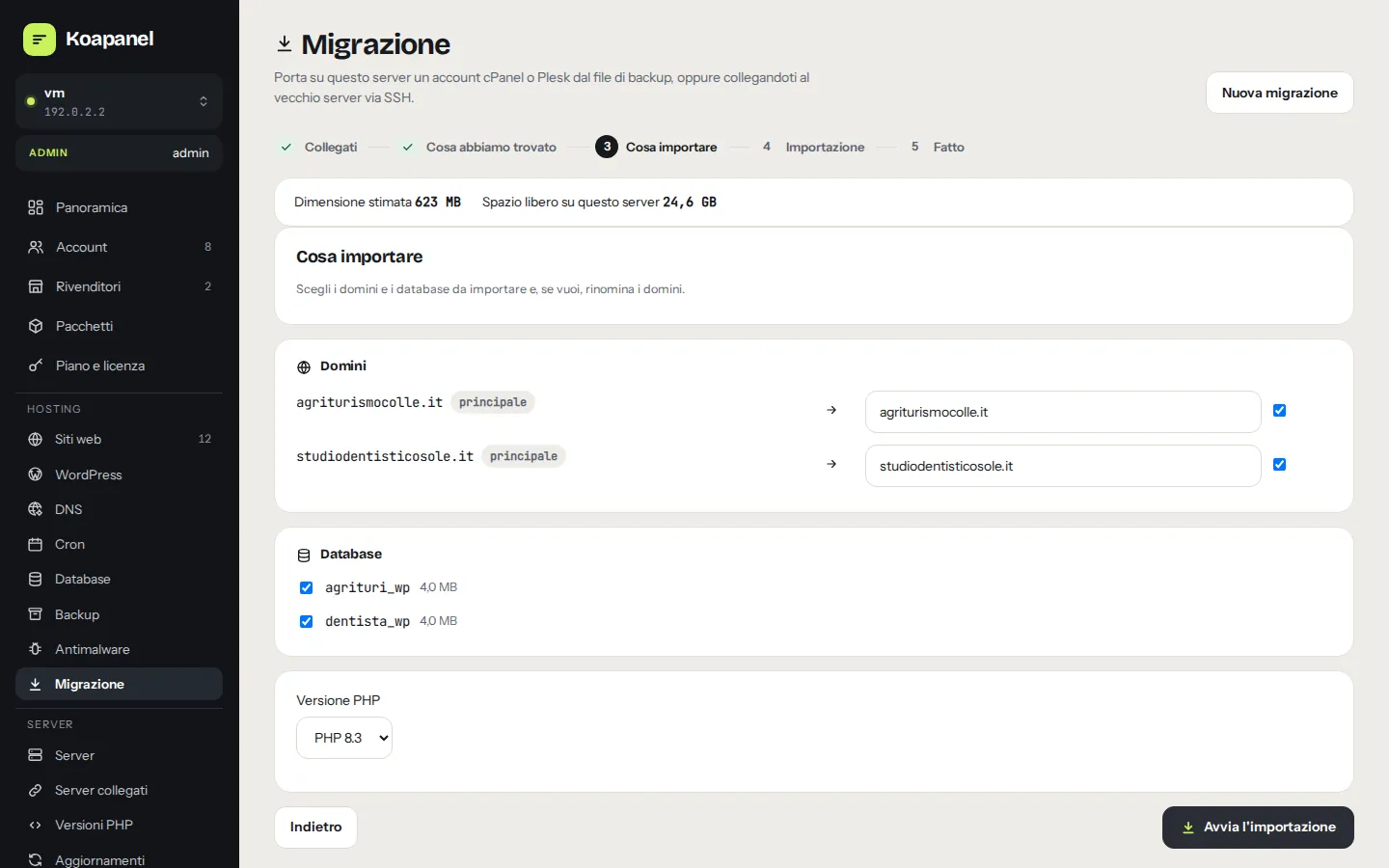
What to import
Choose domains and databases, rename domains if needed, set the PHP version.
Import
In the background, step by step: sites, files, databases, configuration, cron, checks.
Final report
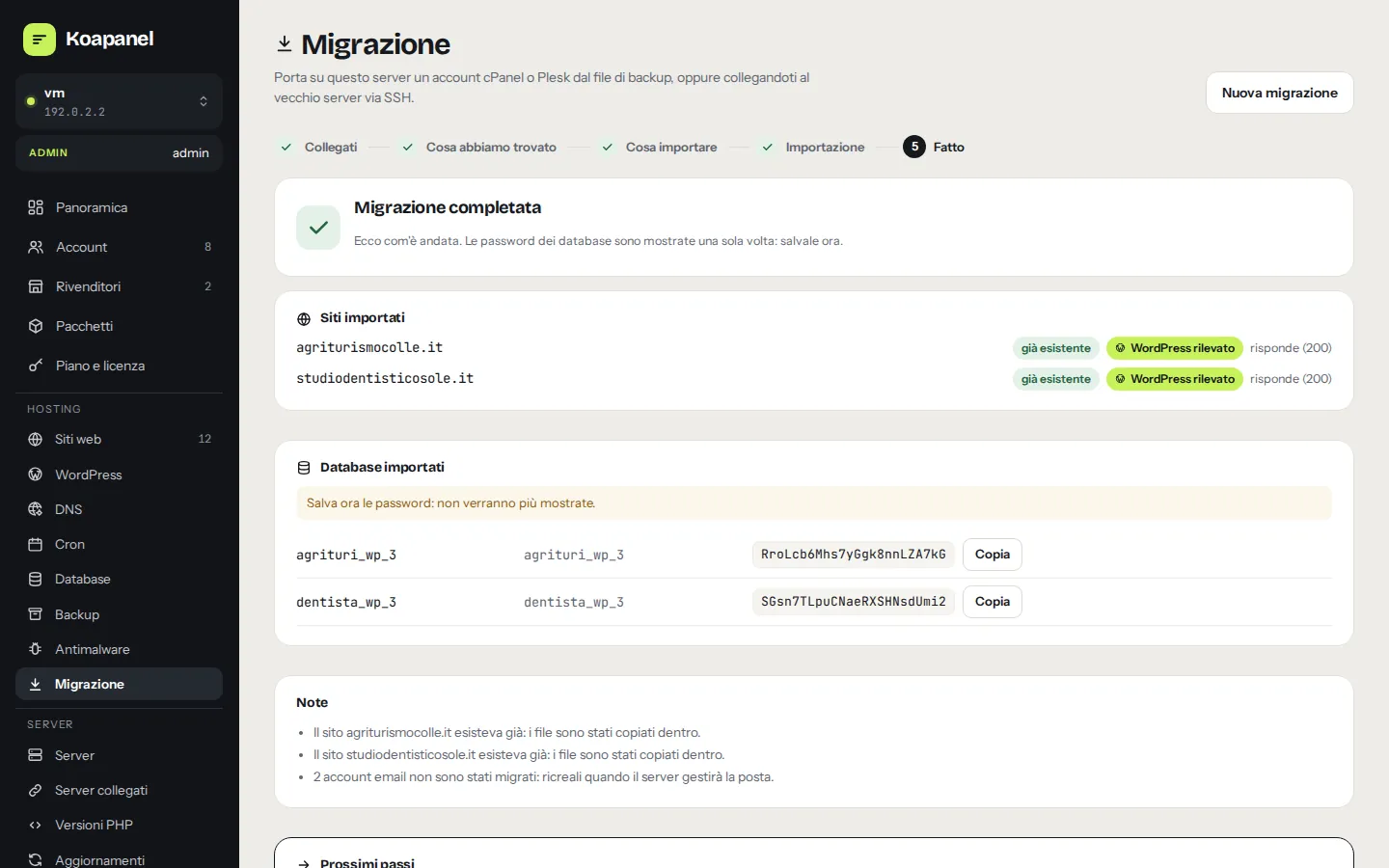
Status of every item, new database passwords and a check that every site responds.
What gets migrated
The site works right away, with the right credentials.
- Sites with their aliases; files copied as the site user
- Databases and users with new passwords, rewritten in
wp-config.php; Joomlaconfiguration.phpand Laravel.envon a best-effort basis, with a note when worth checking - Scheduled jobs imported paused, to review before enabling
- Mailboxes when mail is enabled: from cPanel with messages and original password
- Final sync over SSH up to 7 days later, right before the DNS switch
Security
Migrate without taking risks.
Credentials never stored
SSH passwords and keys stay in memory only for the migration: never on disk, in logs or in the activity history.
Server fingerprint
Before sending any password it shows you the old server's fingerprint and pins it for the whole migration.
Untrusted archives
Blocks paths escaping the folder, zip bombs and special files; SQL dumps stripped of DEFINER, GRANT and references to other databases.
Migration questions
Do I have to shut down the old server?
No. Keep it running until the sites respond well from the new server and mail arrives there. You decide when to switch DNS: the panel never does it automatically.
How do I avoid losing orders or comments?
Lower the DNS records' TTL a day before, then right before the switch use Final sync: it copies only changed files and re-imports the databases.
Can my customers migrate by themselves?
Yes, within their package limits: users can import into their own account (direct copy of files and databases), resellers into their customers.
Do I need to install anything on the old server?
No. The direct copy uses tar and mysqldump inside the SSH connection; the panel cleans up its temporary files at the end.
Ready to switch panels?
Free up to 3 websites for personal use. When you grow, pick the right plan: every feature is included in every plan.